How to use Signet7
Signet7 can cryptographically seal outgoing email, then anyone can verify a message. Pick a setup below to configure and install. Recipients do not install anything. Signet7 is not a mail app. You still write and send in Outlook, Apple Mail, or Thunderbird.

Start here
Signet7 checks whether the words still match the seal, and whether that sender is listed. Recipients never install. Companies start at Register.
1. Check a message (anyone)
No account. No install. Browser Gmail, Apple Mail, a phone, or Outlook without the add-in all use this door.
- Keep the original. A forward can drop what the check needs.
- Open the live check.
- Save the original from your mail app. Drop that saved message.
Details: Check a message.
2. Check inside Outlook (optional)
This add-in checks an open message. It does not seal outgoing mail. Recipients still never install.
- Save signet7.io/outlook/manifest.xml.
- Sideload it in Outlook (not AppSource). Steps: Outlook add-in.
- Open a message. Home ribbon → Signet7 → Check this message.
3. Seal outgoing mail (Outlook, Apple Mail, or Thunderbird)
Same computer as the mail app. Browser Gmail cannot seal. You do not create a Google Cloud app. Unsigned preview — not Authenticode.
- Create or open a company account and copy the Signet7 token.
- Install Signet7 desktop from Download. Incoming checks live in that same app, not a second download.
- If this mailbox is Gmail, create a 16-letter Google app password.
- Fill Signet7 desktop. Click Save and watch. Footer must read Listening on 127.0.0.1:2525.
- Point that mail app’s outgoing SMTP at 127.0.0.1 port 2525: Outlook or Thunderbird, or Apple Mail.
- Send a test. Recipients use the live check. They do not install.
Which URL to open
Each job has its own host. This site does not run the check and does not take a Signet7 password.
Check a message
Keep the original. A forward can drop what the check needs. Use a computer if a phone cannot export it.
Outlook, after the add-in is installed
- Open the message.
- Home ribbon → Signet7 → Check this message. No file.
- On Outlook on the web: open the Signet7 pane → Check this message.
Gmail, Apple Mail, or a phone
- Open the live check.
- Save the original from your mail app. Drop that saved message. Paste of the saved file is advanced. Do not paste only the words you can see on screen.
- Saving a full message from a phone is often hard. Open it on a computer if you can.
What a result means
The check can tell you
- Whether a seal still matches the protected words.
- Whether a signing key is still bound to a claimed sender.
- Matched, unmatched, or unknown.
The check will not tell you
- That a message is safe, authorized, or fraudulent.
- That unknown or unsealed mail is an attack.
- That you should skip calling a number you already have.
Sideload the Outlook add-in
This setup checks an open message in Outlook. It does not seal outgoing mail. Sideload the manifest. Not AppSource. Org-wide push is a Microsoft 365 admin task. Not Exchange. Unsigned mail stays quiet.
- Save signet7.io/outlook/manifest.xml on the PC that runs Outlook.
- Classic Outlook on Windows: Home → Get Add-ins, or File → Manage Add-ins.
- My add-ins → Custom add-ins → Add from file. Choose the saved
manifest.xml. - Outlook on the web: Settings → Add-ins → My add-ins → Add from file. Same file.
- Open a message. Home ribbon → Signet7 → Check this message. No file.
Done. To seal outgoing mail from Outlook, continue with setup 3: company account, then Signet7 desktop.
Hosted panes: taskpane and compose. Write mail in Outlook, not in those panes.
Create or open a company account
First step for sealing. Recipients skip this.
- Open account.signet7.io/account.
- Enter your work mailbox.
- Choose Email a sign-in link. If the mail is slow, use the 6-digit code from that same message.
- If you are new, the link creates the company. If you already have one, the link opens it.
- Copy the Signet7 token. You will paste it into Signet7 desktop. After save, that row must read (64 characters).
Next: install Signet7 desktop.
There is no Signet7 password. Checkout is not live. Amounts are not set. Recipient checks stay free and do not need this account.
Install Signet7 desktop
One company download. That zip is Signet7 desktop. Incoming checks live inside it — not a second app. Recipients never install. They use the live check.
Optional: after Signet7 desktop is running, you can keep money and account mail in an encrypted vault on the office computer that runs Signet7. You hold the recovery key. Cap is 10 GB. Warning at 50%. Export a zip before 90%. The public website check does not keep the letter. Recipients never use the vault. Not a court stamp.
- Open Download. Register first. The zip is on the company desk after you sign in. Recipients should not download it.
- Download the zip for Windows, Mac, or Linux from the desk.
- Unzip it. Open Signet7. Windows SmartScreen and Mac Gatekeeper will ask extra clicks.
- A company account names the work emails. Optional on Download: email a setup note to a work mailbox.
Next: if this mailbox is Gmail, get an app password. Then fill Signet7 desktop.
Unsigned preview. This is not Authenticode. The signed app is not open yet. Signed builds stay later. It is not a composer.
Helper instruction card
For a helper that reads company mail. Recipients skip this. The same card ships in the company zip as AGENT-CHECK.md.
Do not train a model on company mail. Do not rebuild From, To, Subject, or body. Save the original message file. Submit those bytes to the live check. Read two facts: seal, and listing. If the check is down, do not act. Recipients never install. Company computers use the desktop zip, not pip. This card is instructions, not a plugin.
Gmail: 16-letter app password (not Google Cloud)
Gmail sealing uses IMAP, SMTP, and a 16-letter Google app password. You do not create a Google Cloud project. You do not enable the Gmail API. You do not make an OAuth client. Checking a message does not need this. Recipients do not need this.
- Turn on 2-Step Verification for this Google account if it is not already on.
- Open myaccount.google.com/apppasswords (Google Account → Security → 2-Step Verification → App passwords).
- Create an app password. Google shows four groups of four letters. Spaces are optional.
- Paste those 16 letters into Signet7 desktop’s Google app password and SMTP password rows. After Signet7 saves it, that row must read (16 characters).
Do not paste a Google Cloud client ID, client secret, or JSON into Signet7 Token, into Mail user name, or into the Google app password field. If App passwords is missing, this Google account or Workspace admin has turned them off. A Workspace admin must allow app passwords. Do not substitute an OAuth client ID.
Next: fill Signet7 desktop.
Signet7 desktop
The desktop helper is this window: Signet7 desktop. Same on Windows, Mac, and Linux. Status on the right: it watches the named work emails on the office computer that runs Signet7 and stays quiet unless a named sender arrives unsealed or a seal is broken. Optional sealing stamps outgoing mail when your mail app sends through 127.0.0.1:2525. Signet7 is not a mail app. You still write and send in Outlook, Apple Mail, or Thunderbird. Recipients never install it.
Unsigned preview. After Registration, open Download. Windows may warn; this is not Authenticode. Signed builds stay later. The footer must read Listening on 127.0.0.1:2525 before a mail app can seal through it.
Fill Mailbox, then Save and watch
- Open Signet7. Mailbox settings are on the left. Status is on the right.
- Provider: Gmail, Microsoft 365 / Outlook, iCloud, or Other IMAP.
- Email: the full mailbox address.
- Password: the provider app password. Gmail: the 16-letter Google app password, not the Google login, not a Cloud client ID.
- Signet7 Token: the token from account. After save, the row must read (64 characters).
- Start when I sign in: on, if you want Signet7 desktop after reboot.
- Auto-seal outgoing mail: on.
- SMTP host: your real provider. For Gmail,
smtp.gmail.com, not 127.0.0.1. - SMTP password: the same provider app password (Gmail: the same 16 letters).
- Click Save and watch. Confirm the footer: Listening on 127.0.0.1:2525.
smtp.gmail.com, not 127.0.0.1). Save and watch starts the listener.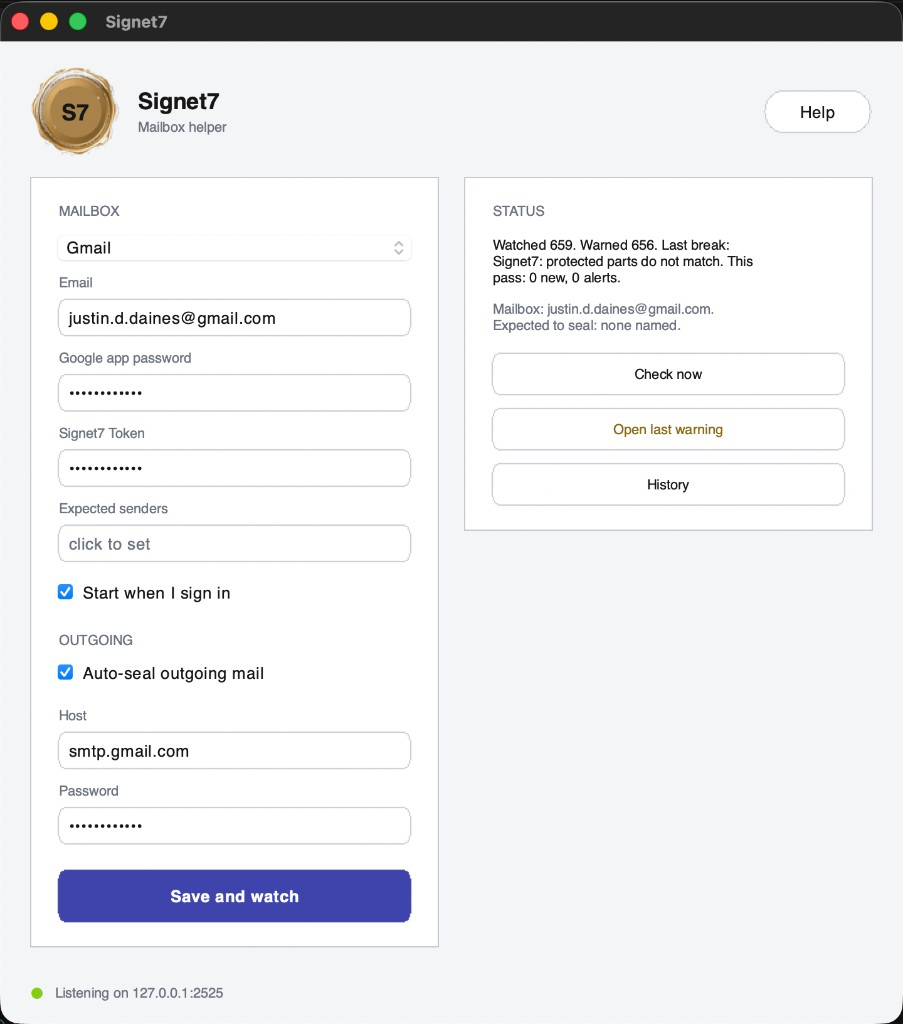
Next: point the mail app at 127.0.0.1:2525. Outlook or Thunderbird, or Apple Mail.
How sealing works
Optional. Same computer as the mail app. Leave Signet7 desktop running or port 2525 goes quiet. It keeps watching incoming in that same window. The app posts seals to seal.signet7.io. The token still comes from account. Recipients still check at the live check. They do not install.
Unsigned preview. After Registration, open Download. Windows may warn; this is not Authenticode. Signed builds stay later. Do not point a mail app at 127.0.0.1:2525 until the footer says it is listening.
Outlook, Thunderbird, or Gmail in the browser
To check a message, see Check a message. Sealing only changes the outgoing SMTP hop on the office computer that runs Signet7, after the Signet7 desktop footer reads Listening on 127.0.0.1:2525. Host 127.0.0.1, not localhost. Port 2525. TLS/SSL off on that hop. Real TLS is Signet7 to your provider after the seal.
Seal from Outlook
Complete account, install, and fill Signet7 desktop first. The Outlook add-in is a separate check path. It does not seal.
- Confirm the Signet7 desktop footer: Listening on 127.0.0.1:2525.
- File → Account Settings → more settings → outgoing server.
- SMTP host 127.0.0.1, port 2525. TLS/SSL off on this hop. Keep writing in Outlook.
- Send a test from this mailbox. Recipients open the live check.
Seal from Thunderbird
Complete account, install, and fill Signet7 desktop first.
- Confirm the Signet7 desktop footer: Listening on 127.0.0.1:2525.
- Account Settings → Outgoing Server (SMTP) → Add.
- Host 127.0.0.1, port 2525. TLS/SSL off. Use that server for the company inbox only.
- Send a test. Recipients open the live check. They do not install.
Gmail in the browser
This is not a sealing setup. Browser Gmail cannot point SMTP at 127.0.0.1.
- To check: see Check a message.
- To seal this Gmail mailbox, use Outlook, Apple Mail, or Thunderbird on the office computer that runs Signet7, with Signet7 desktop listening. You still do not create a Google Cloud app.
Apple Mail
- To check: see Check a message.
- To seal: Seal from Apple Mail (Other IMAP account, not a Google-type account).
Seal from Apple Mail
Complete account, install, Gmail app password, and fill Signet7 desktop first. The footer must read Listening on 127.0.0.1:2525. Then add an Other IMAP account in Mail. Do not set outgoing SMTP to 127.0.0.1 on a Google-type account (Internet Accounts → Google). Mail will list that server as Offline and will not send. To check a message, see Check a message.
Unsigned preview. Register first. Get the zip from the company desk after you sign in. Incoming checks are already inside that app. Windows and Mac may warn; this is not Authenticode.
Add an Other IMAP account in Mail
- Mail → Settings → Accounts → + → Other Mail Account… (not Google).
- Email: your Gmail address. Password: the same 16-letter Gmail app password.
- Open that account → Server Settings. Uncheck Automatically manage connection settings on both incoming and outgoing.
- Incoming Mail Server (IMAP): Host Name
imap.gmail.com, Port 993, Use TLS/SSL on, Authentication Password. User Name: the full Gmail address. - Outgoing Mail Server (SMTP): Account can be named S7. User Name: the full Gmail address. Host Name
127.0.0.1, Port 2525, Use TLS/SSL off, Authentication None. - Save. Compose with From: this Other account, not the Google-type account. You can keep the Google account for reading.
- Send a test. Recipients open the live check. They do not install.
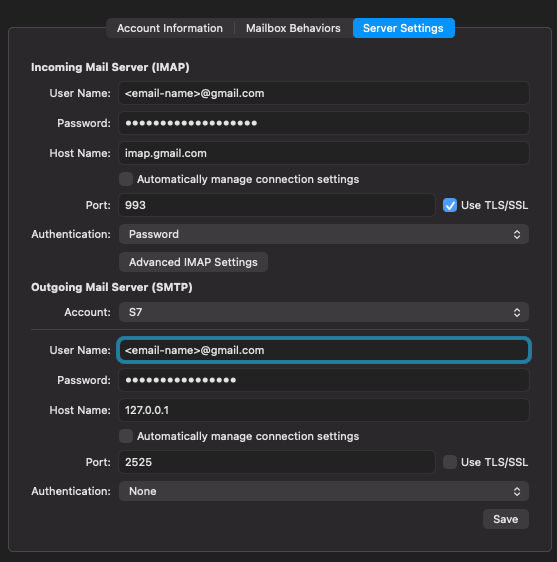
Mail may show “Unable to verify account name or password” while saving outgoing 127.0.0.1. If incoming IMAP is correct, dismiss it and send a test. Connection Doctor dumps Gmail IMAP first. Search the log for 127.0.0.1 or 2525.
Engineer contract
The public product definition is on Product. Trust language is on Trust. Privacy, security, and retention sit on Trust center. Action-bound signatures. Fail-closed unknown actions. no separate inbound/outbound direction field. HTTP and MCP decision surfaces. The caller refuses or performs. Email candidate s7-email-1 covers text and HTML alternatives plus attachment bytes plus declared metadata.
EXECUTEWIRE, PAY, PURCHASE, REFUND, TRANSFERShort sheets: IT · outbound seal · recipient check.